Duplicate Donor Records in Salesforce NPSP: Fix It Right
If your nonprofit operates on Salesforce NPSP, you’re probably doing everything to avoid duplicate donor records — and you’re doing it without realizing it. The donor appears twice with two different names. History is divided into two contexts. Your team makes two appeals to the same person. These are not uncommon edge cases; they are common-day experiences that organizations dealing with NPSP data management issues have.
Duplicate donor records in Salesforce NPSP are not only a headache for administrative staff, but they can also cause significant issues. They skew your fundraising results, losing donor trust, and making it difficult to create any meaningful engagement strategy. This blog discusses in detail precisely why duplicates occur, how to discover them, and how to resolve their occurrence thereafter.
Why Duplicate Donor Records in Salesforce NPSP Are More Damaging Than They Look
For most nonprofit teams, duplicates are a minor nuisance — something to do at the end of the day when you have time. The reality is far more serious. Gartner estimates that bad data quality costs companies $15 million annually on average, and for nonprofits, which work on a small budget with small timelines, it can have even more of an effect.
If there are duplicate donor records in Salesforce NPSP, issues quickly add up:
- Inaccurate lifetime giving totals: A donor’s history is divided into two records, giving a small-scale donor the appearance of being a big-time donor.
- Failed segmentation: Invalid numbers and falsified results because some recipients are included in the same email lists/campaign audiences more than once.
- Broken donor relationships: Duplicate thank you messages or the same solicitation message being received twice is unprofessional and is a breach of trust.
- Unreliable reports: Leadership makes decisions based on reports that don’t reflect reality because of the nonprofit’s CRM data quality problems.
Duplicate donor records in Salesforce NPSP don’t stay small. They continue to build up with every new imported, online donation form submission, and manual data entry without searching first.
Where Duplicate Donor Records in Salesforce NPSP Come From
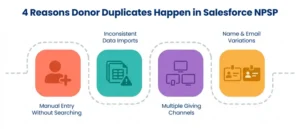
Before you can fix duplicate donor records in Salesforce NPSP, you need to understand how they get created in the first place. There are four primary sources:
- Manual entry without prior searching: Staff members create a new contact without checking whether one already exists. A donor named “Michael Thompson” already has a record, but a new entry gets created for “Mike Thompson” — now you have two.
- Inconsistent data imports: Spreadsheet imports from events, email platforms, or peer-to-peer fundraising tools often carry formatting inconsistencies. If your matching logicisn’t tight, these imports create new records instead of updating existing ones. This is one of the most common causes of duplicate donor records in Salesforce NPSP.
- Multiple online giving channels: Donors give through different platforms — your website, a crowdfunding campaign, an event registration tool — and each one pushes data into Salesforce NPSP differently. Without consistent field mapping and deduplication logic, each submission can generate a fresh contact record.
- Name and email variations over time: The same donor uses a nickname on one form and their full legal name on another. They change email addresses between campaigns. NPSP data management can’t automatically reconcile these variations unless matching rules are properly configured.
Setting Up Matching Rules to Catch Duplicate Donor Records in Salesforce NPSP
The first line of defense against duplicate donor records in Salesforce NPSP is configuring matching rules. Salesforce uses two complementary mechanisms: Matching Rules and Duplicate Rules, and you need both to work together.
Matching Rules: Define What Counts as a Duplicate
Matching rules tell Salesforce which fields to compare when evaluating whether two records might be the same person. For nonprofit CRM data quality, a strong matching rule for Contacts typically evaluates:
- First name (with fuzzy matching to catch “Bob” vs. “Robert”)
- Last name
- Email address
- Phone number
- Mailing address
Salesforce NPSP comes with standard matching rules pre-installed, but the default settings may not be specific enough for your donor base. Review them carefully. If duplicates are slipping through on common name variations or missing emails, customize the fuzzy matching thresholds accordingly.
Duplicate Rules: Define What Happens When a Match Is Found
Once a potential match is identified, Duplicate Rules control the system response. For Salesforce donor data cleanup, you have three options:
- Allow — The record is saved, but a warning is shown.
- Block — The record cannot be saved until the user resolves the conflict.
- Report — The system logs the potential duplicate without interrupting the user.
For most nonprofits, a combination approach works best: block on exact email matches (a near-certain duplicate) and alert on fuzzy name matches (a possible duplicate that may need human review). Set up Duplicate Rules for Contacts, Accounts, and Leads to cover all entry points where duplicate donor records in Salesforce NPSP can originate.
How to Find Existing Duplicate Donor Records in Salesforce NPSP
Even with rules in place going forward, you likely have a backlog of duplicate donor records in Salesforce NPSP that already exist. Here’s how to surface them:
Use the Potential Duplicates Component
Once Duplicate Rules are active, add the Potential Duplicates Lightning component to your Contact record pages. This widget shows staff members any flagged duplicates directly on the record view — making it easy to spot and act on them without running separate reports.
Run Duplicate Reports with NPSP Contact Merge Tools
Salesforce NPSP includes built-in NPSP contact merge functionality. To find duplicates at scale, navigate to the Contacts tab and use the duplicate record sets created by your active Duplicate Rules. These sets group records flagged as potential matches, allowing your team to review and merge them systematically.
For larger databases, consider using Salesforce’s Duplicate Management dashboard or a third-party tool like Cloudingo or DemandTools for bulk donor deduplication in Salesforce. These tools allow batch merging, field-level survivorship decisions (which record’s data “wins” after the merge), and detailed audit logs.
Export and Audit Before Major Campaigns
Before any major fundraising push, run a data audit as part of your Salesforce donor data cleanup routine. Export your Contact list and use Excel or Google Sheets to sort by email address or phone number. Duplicate entries will surface quickly when sorted this way, giving you a pre-merge checklist before you touch anything in NPSP.
How to Merge Duplicate Donor Records in Salesforce NPSP — Step by Step
Once you’ve identified duplicates, fix duplicate records in Salesforce using the native merge process:
- Step 1: Open one of the Contact records you created.
- Step 2: Click on Find Duplicates or on the Potential Duplicates component, if it is a page.
- Step 3: Salesforce will show you a list of matching records. Choose the records that you wish to merge, up to three records at a time, natively.
- Step 4: Select the Master Record — This will be the record that will remain after the merge. Any Opportunities, Relationships, or Tasks will be rolled up to the master.
- Step 5: In each field, indicate the value that will be “stored. This is where the NPSP contact merge gets tricky, so keep an eye out for the history, household affiliation, and custom fields specific to your org.
- Step 6: Click on Merge to finalize the process.
Once merged, ensure that the giving history, relationships, and engagement data are preserved on the surviving record. Manually spot-check a select number of combined records, particularly for those large donors.
Important: Salesforce NPSP’s household model means a Contact’s merge may also affect its parent Household Account. Always check the Household Account after merging to ensure it reflects the correct data.
Preventing Duplicate Donor Records in Salesforce NPSP Long-Term
Cleaning up existing duplicate donor records in Salesforce NPSP is only half the job. Prevention is where lasting nonprofit CRM data quality is built.
Enforce a “Search First” Data Entry Policy
Make it standard practice for every staff member to search existing contacts before creating a new one. This sounds obvious, but it’s routinely skipped under time pressure. Build it into onboarding, training, and data governance documentation.
Standardize Field Formats Before Import
Before any import — from a spreadsheet, an event tool, or a donation platform — normalize the data. Standardize phone formats, capitalize names consistently, and validate email addresses. Sloppy imports are one of the top drivers of duplicate donor records in Salesforce NPSP.
Map Integration Fields Carefully
When connecting third-party tools to your Salesforce for nonprofits implementation — online giving platforms, email marketing tools, event registration software — make sure every integration is configured to match against an existing Contact before creating a new one. This usually means mapping an email address as the primary unique identifier.
Schedule Quarterly Data Audits
NPSP data management isn’t a one-time project. Build a quarterly cadence for reviewing duplicate record sets, validating field data quality, and running deduplication checks. Treat it like a standing agenda item, not an emergency response.
Limit Who Can Import Data
Restrict bulk import permissions to trained staff who understand your data standards. One poorly configured import can create hundreds of duplicate donor records in Salesforce NPSP in minutes. Role-based access controls help keep this risk contained.
Salesforce NPSP Pricing and What It Means for Data Tools
When assessing Salesforce NPSP pricing, one thing that many nonprofits tend to forget is the data management tools that are included or excluded from the price. Salesforce has a free core NPSP, which is part of the Salesforce Nonprofit Success Pack (NPSP), through its Power of Us Program, for the first ten users. There are, however, some extra investments in advanced deduplication capabilities, third-party data tools, and implementation support.
If you have a company that wants to use Salesforce NPSP duplicate management at scale, consider the pricing of tools such as Cloudingo or DemandTools, along with the time for Salesforce development services to configure the matching rules, automate processes, and train your employees. When you factor in wasted campaign dollars, lost connections with major donors, and lost staff time due to bloated donor data, the ROI of this initial investment is fast.
Non Profit Fundraising in Salesforce Depends on Clean Data
The takeaway to this: Nonprofit fundraising in Salesforce only works as well as the data that drives it. Attaching fragmented donor records to your campaigns is like building on a faulty foundation.
Clean Salesforce nonprofit data management directly improves:
- Donor retention: When donors’ giving history is contained in a single record, it is easy to accurately identify lapsed donors.
- Major donor identification: Lifetime giving totals are reasonably reliable and make it easier to identify those who might be upgrade candidates.
- Campaign ROI: With less duplication, less outlay of resources, and more accurate attribution.
- Board reporting: Leadership receives reports that they may rely on, critical for grant reporting and decision-making.
Every dollar you invest in Salesforce donor management data quality compounds over time. The cleaner your database, the better your fundraising intelligence.
Conclusion
Duplicate donor records in Salesforce NPSP are one of the most common — and most fixable — data challenges nonprofits face. The key is treating data quality not as a cleanup task but as an ongoing operational standard. From configuring matching rules and running NPSP contact merges to enforcing data entry policies and scheduling regular audits, every step you take toward cleaner nonprofit CRM data quality translates directly into stronger fundraising outcomes. If your team needs expert support setting this up, AnavClouds Software Solutions brings deep Salesforce for nonprofits implementation experience to help you build a database your campaigns can rely on.
FAQs
What causes duplicate donor records in Salesforce NPSP?
Duplicate donor records in Salesforce NPSP are usually due to a lack of a search process when entering data manually, inconsistent data in bulk imports, multiple online giving options, and variations in name and/or email address over time from donor interactions.
How do I merge duplicate donor records in Salesforce NPSP?
Select one of the duplicate contact records, click Find Duplicates or use the Potential Duplicates component, select records to merge, choose a master record, determine which field values to retain, and perform the merge.
Does Salesforce NPSP have built-in tools for duplicate management?
Yes. Salesforce NPSP comes with built-in matching rules, duplicate rules, and contact merge. Third-party solutions, such as Cloudingo or DemandTools, are better suited for larger deduplication initiatives with Salesforce, providing more powerful batch processing functionality.
How often should nonprofits run data cleanup in Salesforce NPSP?
One of the best practices for Salesforce nonprofit data management is a data audit every quarter. Also, conduct a specific data audit prior to any large-scale fundraising event, so your donor information is clean and correct.
Search Posts
Popular Posts
Author profile: Saransh Maurya, Content Writer at AnavClouds Software Solutions
Saransh
Maurya
About the author
Saransh Maurya is a dynamic and results-driven professional with a passion for innovation and problem-solving. Known for his analytical mindset and attention to detail, he excels at delivering high-quality solutions that drive business growth and operational efficiency. With strong communication skills and a collaborative approach, Saransh effectively bridges ideas and execution, contributing to successful projects and meaningful outcomes across diverse domains.
Recent Posts